SLA - Service Level Agreements
Define, monitor and enforce service quality standards. Reaction time, resolution time, pauses and color-coded indicators in real time.
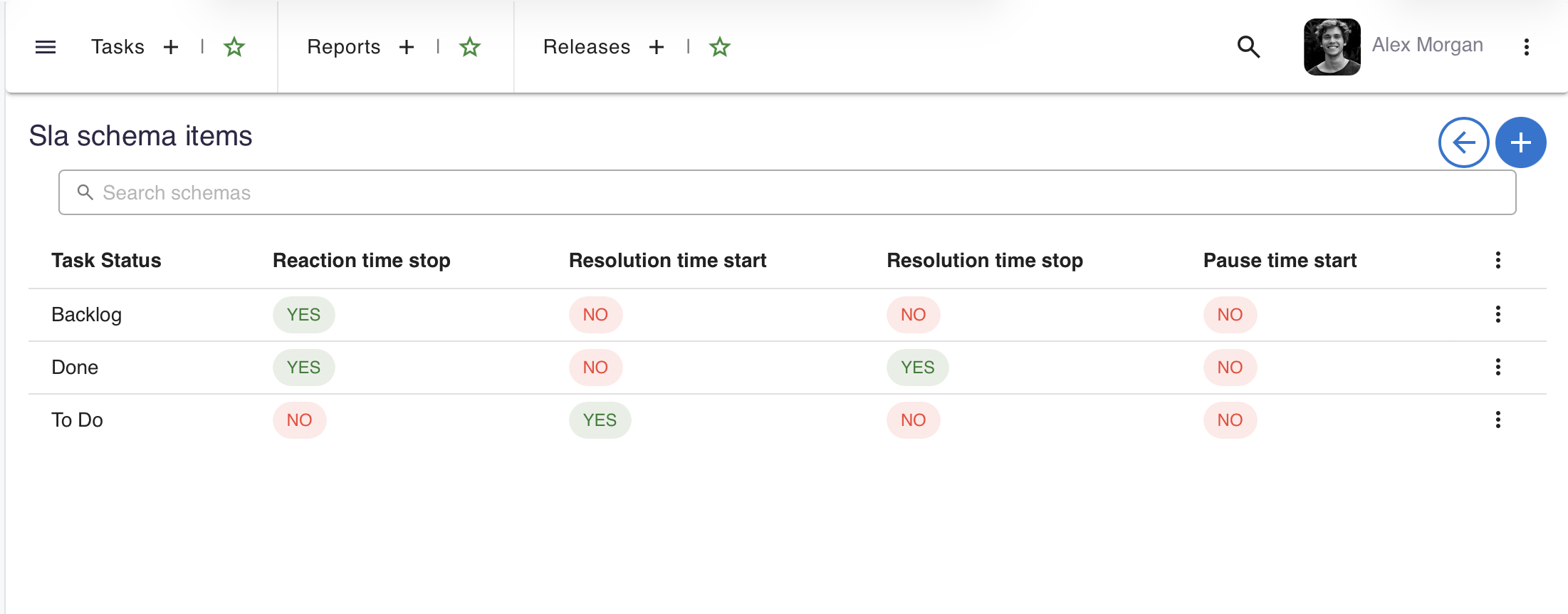
How SLA works in say.work
SLA is based on three layers: schema, project parameters and automatic tracking at the task level.
SLA Schemas
An SLA schema is a central template defining which status transitions start, stop or pause the time countdown. Each schema contains rules mapping task statuses to events: reaction time stop, resolution time start/stop and pause initiation.
Per-project Parameters
Each project with SLA enabled defines its own parameters: reaction time and resolution time in hours or minutes, differentiated by task type and priority. A separate flag determines whether counting considers only business hours or runs 24/7.
Reaction Time
Measures the time from task creation to the first team reaction (e.g. status change to "In Progress"). The system automatically stops the counter when the task reaches a status marked in the schema as ending the reaction phase.
Resolution Time
Measures the time from when work begins on a task until its closure. Counter start and stop are linked to statuses marked in the schema as starting and ending the resolution phase.
SLA Pauses
When a task enters a pausing status (e.g. "Waiting for Client"), the SLA clock is automatically suspended. Pause time does not count towards elapsed time. After leaving the pausing status, the clock resumes.
Business Hours vs 24/7
For each type+priority combination, you can separately define whether SLA counting runs during business hours (from the company calendar) or non-stop. This allows handling both helpdesk tasks (24/7) and internal projects (8:00-16:00, Mon-Fri).
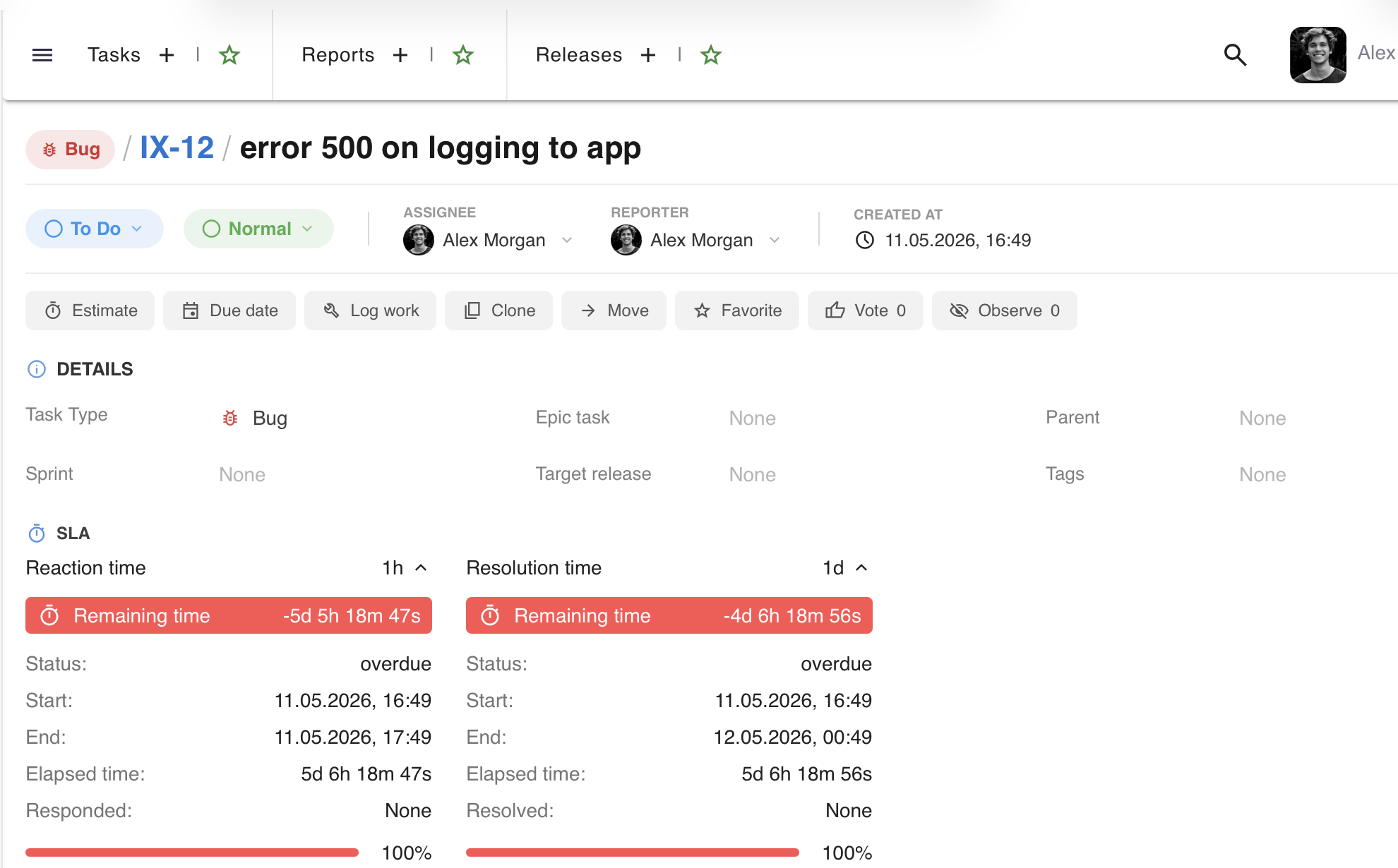
Real-time SLA indicators
Every task covered by SLA displays color-coded bars with countdowns, status and progress bar - visible immediately in the task view.
The SLA panel on a task shows the full picture of the current service level agreement status:
- "Remaining Time" bar - color-coded bar with icon and countdown: green (within SLA), red (breached), orange (paused), gray (inactive)
- Details - SLA status, start date, expected completion date, elapsed time, and actual resolution date
- Progress bar - visual percentage indicator of SLA time usage; color changes dynamically depending on status
- Two independent counters - reaction time and resolution time displayed separately, each with its own bar and countdown
- Schema name - the header shows the name of the SLA schema assigned to the project
- Permissions - SLA panel visibility is controlled by a dedicated permission; teams see only what they should
Setting up SLA in a project
SLA configuration happens at two levels: global (schemas) and project-level (parameters).
Global Schema
The administrator creates SLA schemas in the admin panel. Each schema is a list of items - mapping task statuses to SLA events (start, stop, pause). A schema can be assigned to multiple projects.
Project Parameters
In project settings (the "SLA" tab), specific times are defined: reaction and resolution times in minutes/hours, per task type and priority combination. A table with search and sorting simplifies managing a large number of rules.
Type × Priority Matrix
Each SLA rule is defined for a specific task type + priority pair. E.g. "Bug + Critical" = 1h reaction, 4h resolution, while "Task + Low" = 8h reaction, 5 days resolution. Full flexibility for different contracts.
Enabling SLA per Project
SLA is enabled with a single toggle in project settings. Projects without active SLA don't display the panel on tasks. This allows mixing projects with and without SLA in a single say.work instance.
Want to see more?
A meeting is the fastest way to see how say.work can streamline your team's work.
call Let's talk